

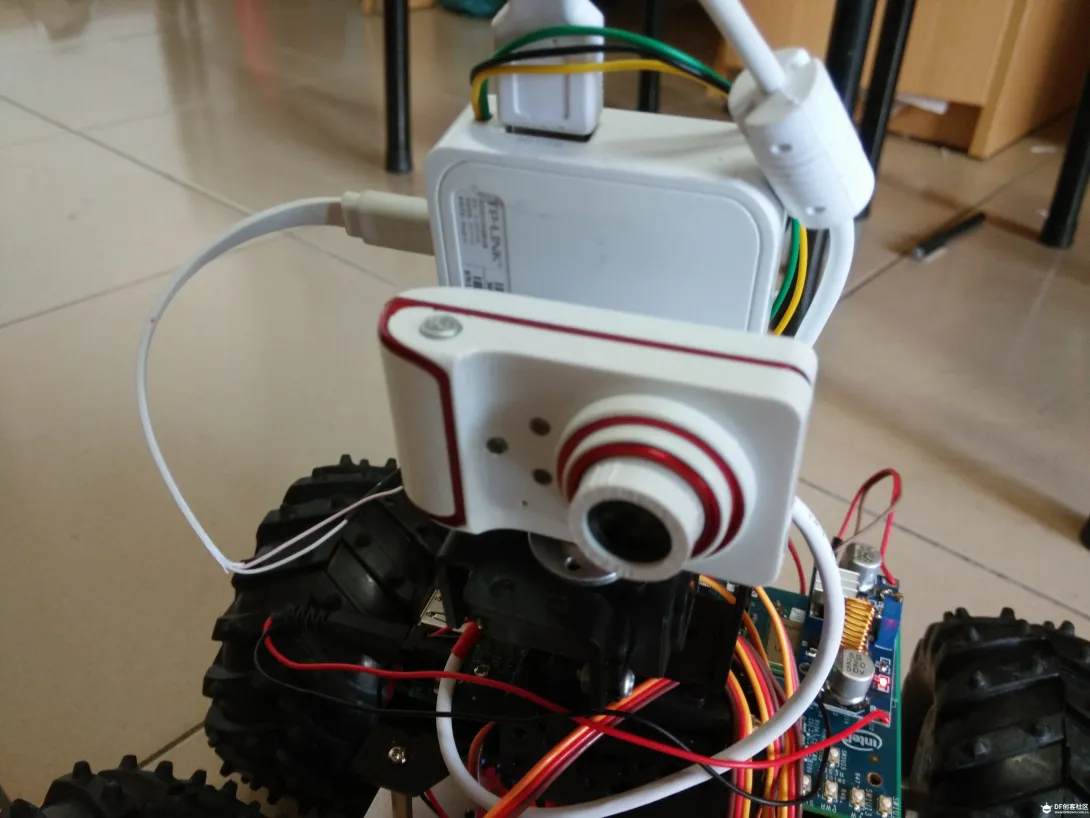
<br>远程机械臂去抓取物体时,一般情况下我们会人工去控制每一个舵机的转动角度,但是由于视差以及人工操作的不可控性使抓取操作变得不那么简单。在自动抓取机器人中我们通过edison进行图像分析处理,自动调节机械臂与物体之间的相对位置,当图像于抓取位置图像相吻合时,再通过过距离传感器消除视察实现自动抓取。</br>
<strong>硬件组成:</strong>
1、Intel Edison & Arduino Breakout Kit ×1
2、Tplinkw703n(刷入openWRT) ×1
3、L298N ×2
4、直流减速电机 ×4
5、摄像头 ×1
6、舵机 ×5
<strong>第一部分:设置GPIO</strong>
GPIO python来驱动GPIO
import mraaprint (mraa.getVersion())
x = mraa.Gpio(13)
x.dir(mraa.DIR_OUT)
x.write(1)
<strong>第二部分:封装轮子</strong>
class Wheel:
pins ={'a':[13,15],'b':[16,18],'c':[19,21],'d':[22,24]}# 这里指定了四个轮子所使用的8个GPIO接口
def __init__(self,name):
self.name = name
self.pin = Wheel.pins[self.name]
GPIO.setmode(GPIO.BOARD)
GPIO.setup(self.pin[0],GPIO.OUT)
GPIO.setup(self.pin[1],GPIO.OUT)
self.stop()
def forward(self):
GPIO.output(self.pin[0],GPIO.HIGH)
GPIO.output(self.pin[1],GPIO.LOW)
def stop(self):
GPIO.output(self.pin[0],False)
GPIO.output(self.pin[1],False)
def back(self):
GPIO.output(self.pin[0],False)
GPIO.output(self.pin[1],True)
Wheel('a').forward() #a,b,c,d是四个轮子的名字
通过调用每个Wheel实例,可以对他们自由操作。由于整个车是由四个轮子协同来工作的,我们需要同时来让四个轮子一起工作,对此对这种协同工作进行封装,让我们不必在关心怎样驱动4个轮子就可以前进了:
<strong>第三部分: 封装车子</strong>
前进、后退、左转、右转,封装一下代码
class Car:
wheels=[Wheel('a'),Wheel('b'),Wheel('c'),Wheel('d')]
@staticmethod
def init():
GPIO.setmode(GPIO.BOARD)
@staticmethod
def forward():
for wheel in Car.wheels:
wheel.forward()
@staticmethod
def back():
for wheel in Car.wheels:
wheel.back()
@staticmethod
def left():
Car.wheels[0].forward()
Car.wheels[1].forward()
Car.wheels[3].back()
Car.wheels[2].back()
@staticmethod
def right():
Car.wheels[2].forward()
Car.wheels[3].forward()
Car.wheels[0].back()
Car.wheels[1].back()
@staticmethod
def stop():
Car.wheel[0].stop()
Car.wheel[1].stop()
Car.wheel[3].stop()
Car.wheel[2].stop()
远程遥控小车,因此小车必须提供和外部遥控设备的通信接口:
<center><img src="http://intel.eetrend.com/files/2016-07/wen_zhang_/100001921-5541-1-1.jp…; alt="" width="600"></center>

<br><strong>第四部分:通信程序</strong></br>
选择了Wifi的方式,所以使用socket作为接口最直接不过了:
rom socket import *
import sys
import time
import car
commands ={'forward':Car.forward,
'back':Car.back,
'stop':Car.stop,
'left':Car.left,
'right':Car.right
}
def execute(command):
print command
commands[command]()
HOST ='192.168.2.101' #the ip of edison
PORT = 8888
s= socket(AF_INET, SOCK_STREAM)
s.bind((HOST, PORT))
s.listen(1)
print ('listening on 8888')
while 1:
conn, addr = s.accept()
print ('Connected by:', addr)
while 1:
command= conn.recv(1024).replace('\n','')
if not command:break
execute(command)
conn.close()
> sudo python server.py 之后,edison会监听8888端口一旦有消息传递过来,根据命令参数调用相应的方法。小车的服务端接口就相当一个执行者,接受到命令就立刻执行,此次只要可以建立和小车的socket连接,便可以轻松控制。
<strong>第五部分: 手机操作小车</strong>
通过手机来操作,实际上就通过socket和edison进行通信,当edison处于listening状态,对于手机来说,它要做的最重要的事情就是发送消息到edison,成为一个小车的指挥者:
package com.simplexk;
import java.io.PrintWriter;
import java.net.Socket;
public class Commander {
public static String HOST ="192.168.2.101"; //the ip of edison
public static int PORT =9000;
public static void send(Command forward) throws Exception {
Socket socket = new Socket(HOST, PORT);
PrintWriter writer = new PrintWriter(socket.getOutputStream());
writer.println(forward.toString());
writer.flush();
socket.close();
}
}
<strong>第六摄像头</strong>
1、tplinkw703n刷入openwrt进行图像采集
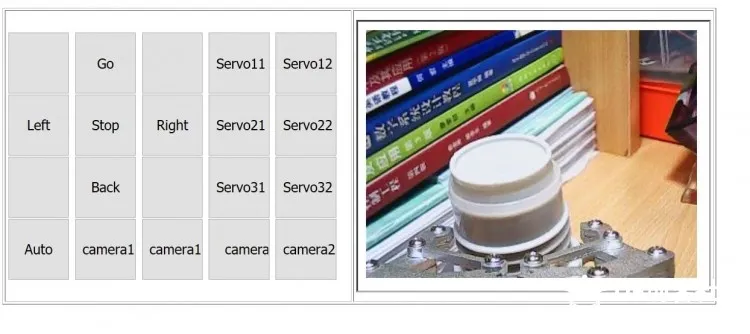
2、通过http://192.168.1.1:8080/?action=stream获取图像
3、703n除作为图像采集外,还作为路由器,将客户端(手机或电脑)与edison链接,通过wifi进行图像传输和控制
4、采集后的图像通过opencv进行识别和处理,作为控制信号。控制机械臂抓取物体。
5.由于采集图像与真实情况存在误差,不能准确的抓取物体,需要在机械臂爪臂上增加距离传感器,与图像识别相结合进行物体的抓取。
<center><img src="http://intel.eetrend.com/files/2016-07/wen_zhang_/100001921-5542-1-2.jp…; alt="" width="600"></center>

<br><strong>第七网页</strong></br>
<html><br />
<head><br />
<title>Edison</title><br />
</head><br />
<body><br />
<table width="915" border="1" cellpadding="2"><br />
<tr><br />
<td width="432" height="326"><div align="left"><input type="button" value=" " style="height:80px; width:80px;" /><br />
<input type="button" value="Go" style="height:80px; width:80px;" /><br />
<input type="button" value=" " style="height:80px; width:80px;" /><br />
<input type="button" value=" Servo11 " style="height:80px; width:80px;" /><br />
<input type="button" value="Servo12" style="height:80px; width:80px;" /><br />
<input type="button" value="Left" style="height:80px; width:80px;" /><br />
<input type="button" value="Stop" style="height:80px; width:80px;" /><br />
<input type="button" value="Right" style="height:80px; width:80px;" /><br />
<input type="button" value=" Servo21 " style="height:80px; width:80px;" /><br />
<input type="button" value="Servo22" style="height:80px; width:80px;" /><br />
<input type="button" value=" " style="height:80px; width:80px;" /><br />
<input type="button" value="Back" style="height:80px; width:80px;" /><br />
<input type="button" value=" " style="height:80px; width:80px;" /><br />
<input type="button" value=" Servo31 " style="height:80px; width:80px;" /><br />
<input type="button" value="Servo32" style="height:80px; width:80px;" /><br />
<input type="button" value="Auto" style="height:80px; width:80px;" /><br />
<input type="button" value="camera11" style="height:80px; width:80px;" /><br />
<input type="button" value="camera12" style="height:80px; width:80px;" /><br />
<input type="button" value=" camera21" style="height:80px; width:80px;" /><br />
<input type="button" value="camera22" style="height:80px; width:80px;" /> <br />
</div></td><br />
<td width="463"><iframe src="192.168.1.1:8080/?action=stream" width="320" height="240"> </td><br />
</tr><br />
</table><br />
</body><br />
</html><br />
<center><img src="http://intel.eetrend.com/files/2016-07/wen_zhang_/100001921-5543-1-3.jp…; alt="" width="600"></center>

<br>文章来源:<a href="http://www.dfrobot.com.cn/community/thread-12719-1-3.html">DF创客社区</br>